Adding a new client from the invoice screen
A new client and its invoice on one screen.
Adding a new client from the invoice screen
Silent — on-screen captions in Arabic
You don’t need to leave the invoice to add the client. The small form inside the invoice screen saves the client exactly like “New client”, with the same validation, then continues the invoice for that client.
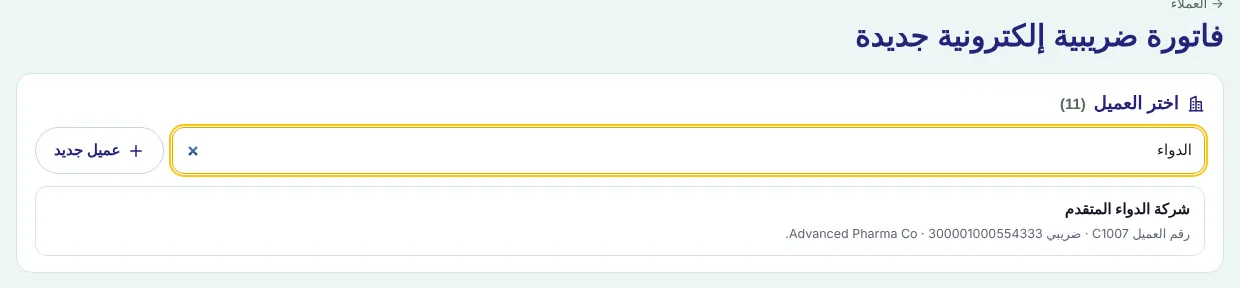
Press “+ Add invoice”.
Next to the search box press “New client”.
Enter the mandatory “Facility name (Arabic)”, the English name, VAT number, “CR / unified number”, “Client number (optional)”, “Payment term (days)” (30 by default), mobile and email.
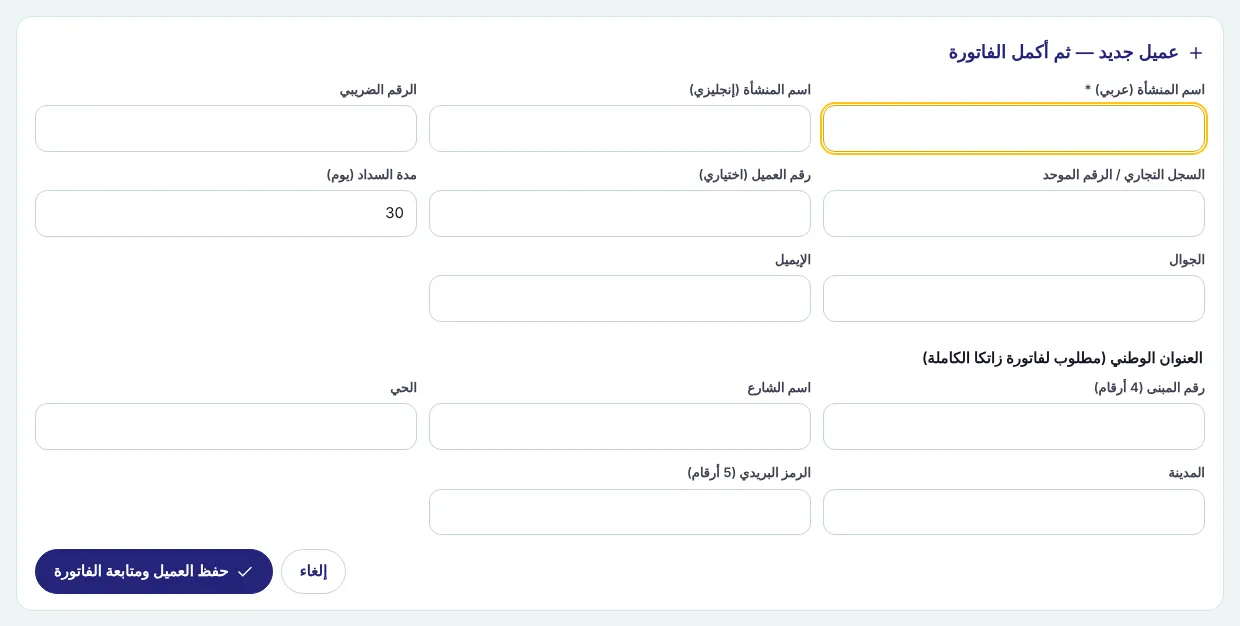
Complete the “National address (required for a full ZATCA invoice)”: building number (4 digits), street, district, city, postal code (5 digits).
Press “Save client and continue the invoice” — the client is saved and you move straight to its invoice.
Complete the lines and press “Issue invoice” as usual — see Issuing an e-invoice with “Add invoice”.
Screenshots come from a demo copy with sample data.
Was this article helpful?
What could be better? (optional)
We only store vote counts — no personal data.