Adding a new client and completing the client file
A complete client file means a correct tax invoice the first time.
Add the client
From the home page or the “Clients” list press “New client”.
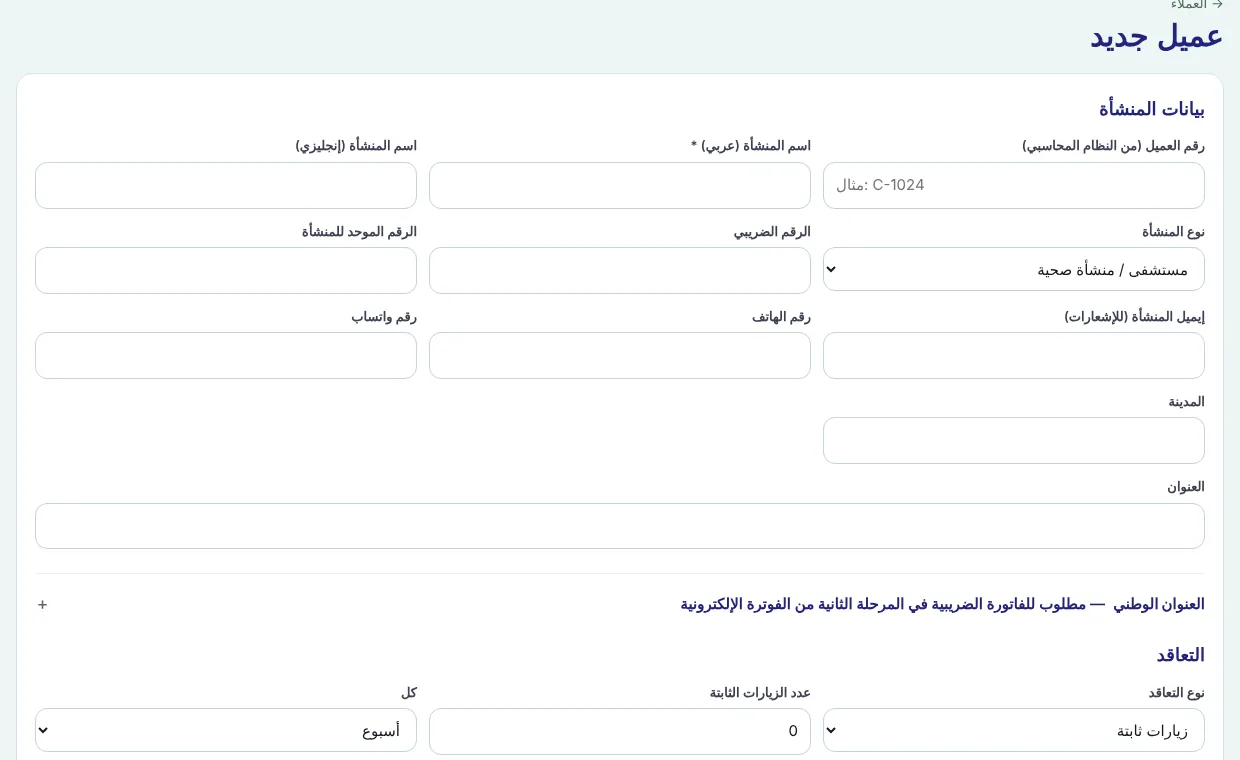
Enter the “Client number (from the accounting system)” if you have one, and the mandatory “Facility name (Arabic)” that appears on every document, then the English name and facility type.
Enter the VAT number and unified number, the facility email (it receives notifications and invoices), phone and WhatsApp, city and address.
Open “National address” and complete it (4-digit building number, street, district, city, 5-digit postal code) — it is required for tax invoices under e-invoicing phase two.
Set the “Payment term” (immediate, 15, 30, 45, 60, 90 or 120 days), the “Notification language” and the “Account status”, then save.
Complete the client file
Open the client from the list; the file is organised in tabs:
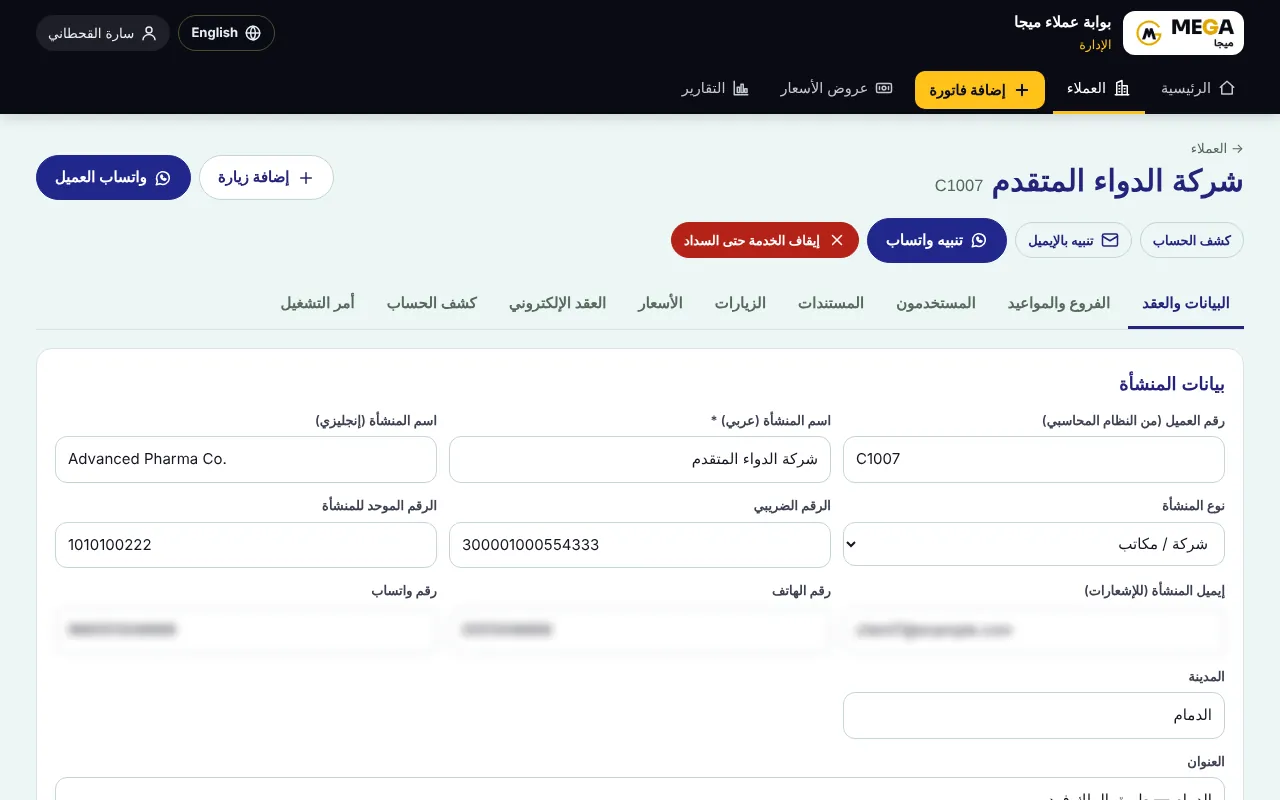
| Tab | What it holds |
|---|---|
| Data & contract | Official data, contract type and period, payment term, notification language and account status. |
| Branches & times | Client branches with contact details and map link, and fixed times if your sector works with scheduled visits. |
| Users | “Create a client user” so the client can sign in to its portal — “All branches” or one branch. |
| Prices | Client items and prices; they appear under “From client prices” when you issue an invoice. |
| Statement | Invoices, payments, reminders and collection — see كشف حساب العميل: الدفعات والتذكير والتحصيل. |
Screenshots come from a demo copy with sample data.
Was this article helpful?
What could be better? (optional)
We only store vote counts — no personal data.