Setting up a new company step by step
Follow the steps in order; each one completes itself when its data is filled in.
“Company setup” is an ordered checklist for the first run; each step is marked complete automatically once its data is filled in. Follow the order — some steps depend on earlier ones (sector before data, clients before their balances).
Open “Company setup” from the home page, or click the bar at the top of the home page.
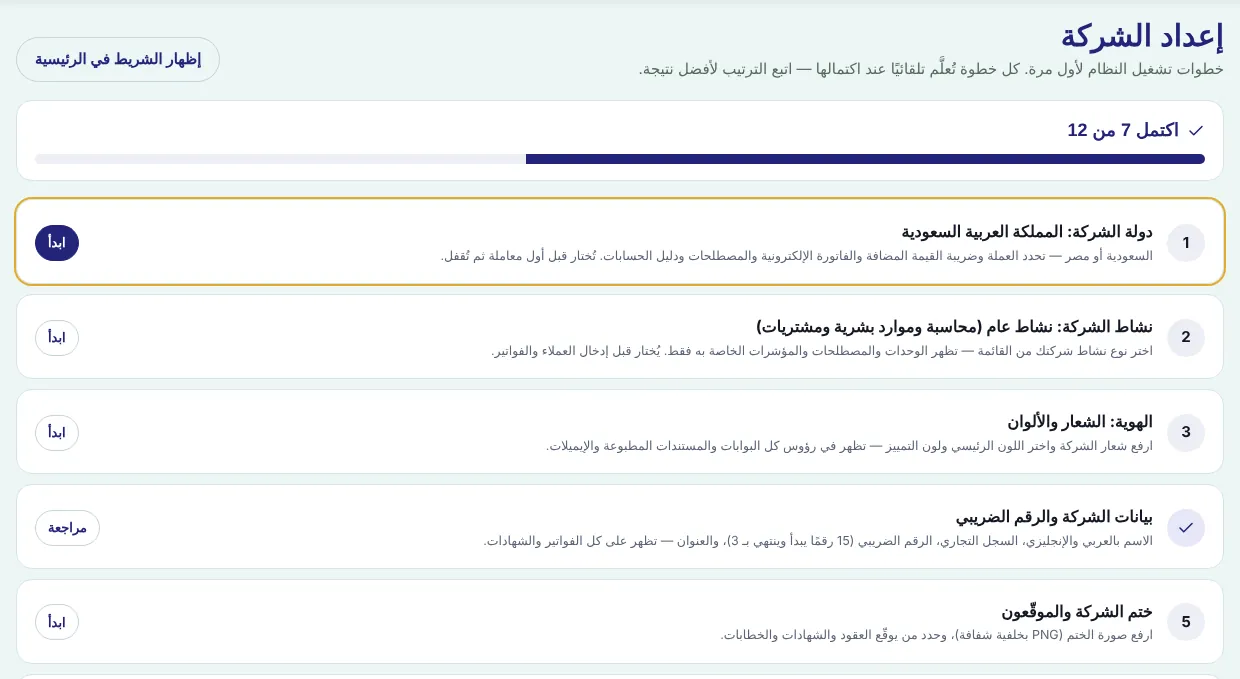
Company country: Saudi Arabia or Egypt — sets the currency, tax, invoice wording and terminology. It locks after the first transaction to protect entries and invoices.
Business sector: choose it and press “Save business activity” before entering any client or invoice; it decides the visible modules and the chart-of-accounts template.
Identity: upload the logo (a transparent PNG at least 400 px wide, up to 3 MB), choose the primary and accent colours, then “Save identity”.
Company data and VAT number: Arabic and English names, commercial registration, VAT number (15 digits starting and ending with 3) and address.
Stamp and signatories: a transparent PNG stamp, and who signs contracts, certificates and letters.
Email: the sending address and the management emails that receive alerts.
Portal users: the accountant and technicians/drivers and supervisors — see مستخدمو البوابة وصلاحيات كل دور.
Clients, employees and suppliers with their opening balances: each step links straight to the entry and Excel import screens.
Accounting: “Upload the trial balance and opening balances” and “Accounting settings and start date” — see بدء المحاسبة: تاريخ التشغيل ودليل الحسابات.
First backup: confirm the daily backup runs, and enable cloud backup if it is in your subscription.
When every step is complete the progress bar disappears from the home page. You can hide it earlier with “Hide the bar from home” and bring it back with “Show the bar on home”.
Screenshots come from a demo copy with sample data.
Was this article helpful?
What could be better? (optional)
We only store vote counts — no personal data.