Adding an employee and importing employees from Excel
A complete file for each employee — or everyone at once from Excel.
The employee file is the single reference for their data; payroll, GOSI, leave, end of service and alerts are calculated from it. A complete file — especially salary, start date, GOSI and line manager — is the most important step to avoid calculation errors.
One employee
In “Employees” press “New employee”.
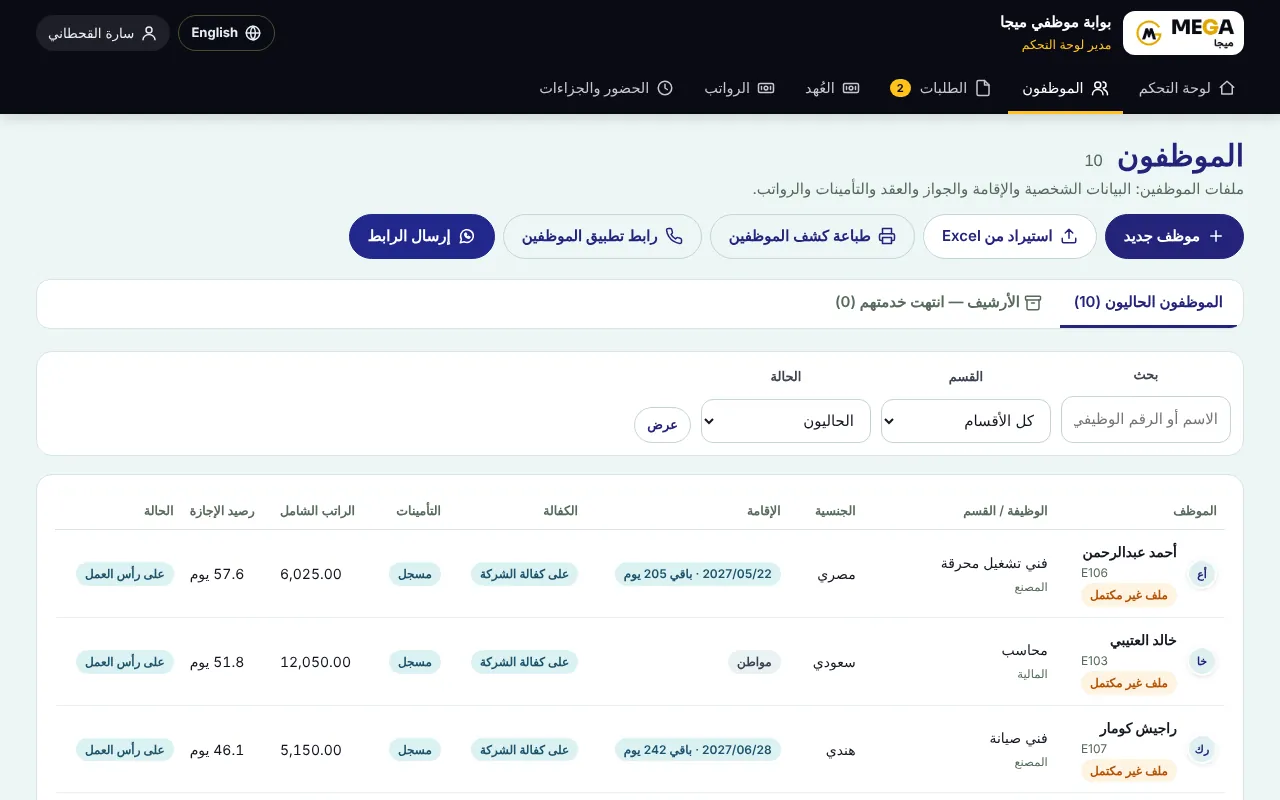
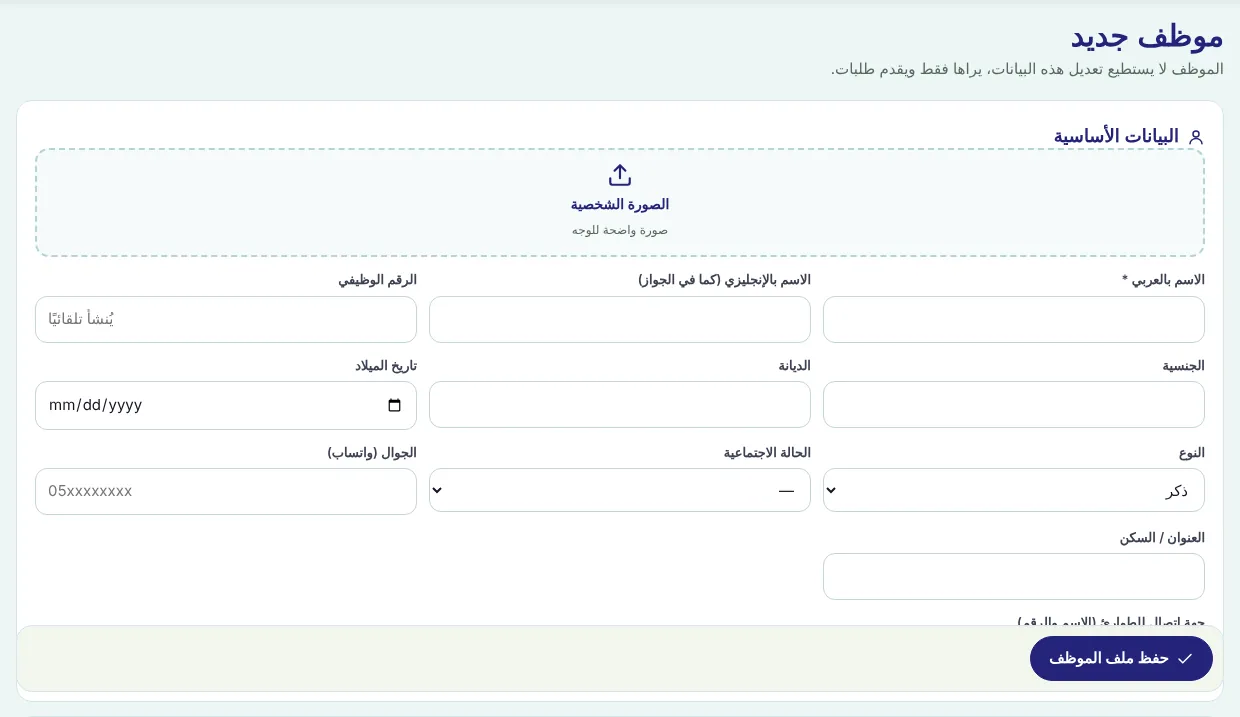
Under “Basic details”: Arabic name (mandatory), English name as in the passport, nationality, date of birth, mobile and photo.
Under “Iqama & passport”: numbers, expiry dates and document images.
Under “Job & contract”: title, department, “Line manager”, start date, contract type and dates, and employee status.
Under “GOSI, sponsorship & medical insurance”: keep “Registered in GOSI” ticked for registered staff and complete the registration date — and for Saudis the “Date of first GOSI registration” (see GOSI under the new Social Insurance Law (from 3 July 2024)).
Under “Salary & allowances”: basic, allowances, bank and IBAN; under “Leave & working hours”: leave days, opening balance, shift and attendance sites.
Under “Portal access” type the employee’s email and keep “Send login details to the employee by email” ticked, then “Save employee file”.
All employees from Excel
In “Employees” press “Import from Excel”, upload your file as it is (xlsx or CSV), then “Read file”.
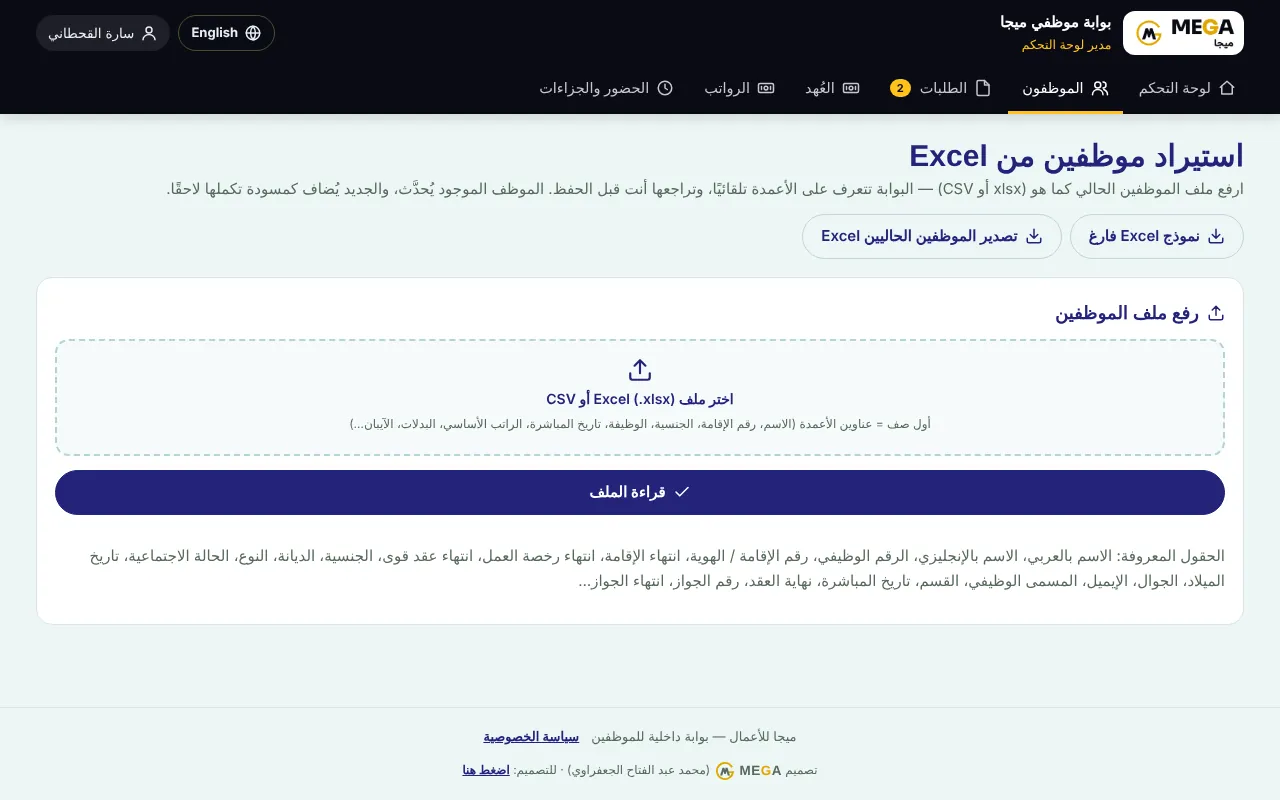
On the mapping screen check “Column in your file” and “Saved to”, fix any column or choose “— Ignore —”, and tick “Skip” for unwanted rows.
Choose how to treat existing employees: update them with filled cells only, or ignore them and add new ones only, then “Import now”.
From the result open every employee marked “Draft” to complete what is missing.
Screenshots come from a demo copy with sample data.
Was this article helpful?
What could be better? (optional)
We only store vote counts — no personal data.