The client portal: how your client sees invoices and pays
Your client sees invoices, pays and follows up on their own — no phone calls.
The client portal: how your client sees invoices
Silent — on-screen captions in Arabic
Every client signs in at the same portal link with its own account and sees only its own organisation. Here is a tour of what they see, so you can explain it to clients with confidence.
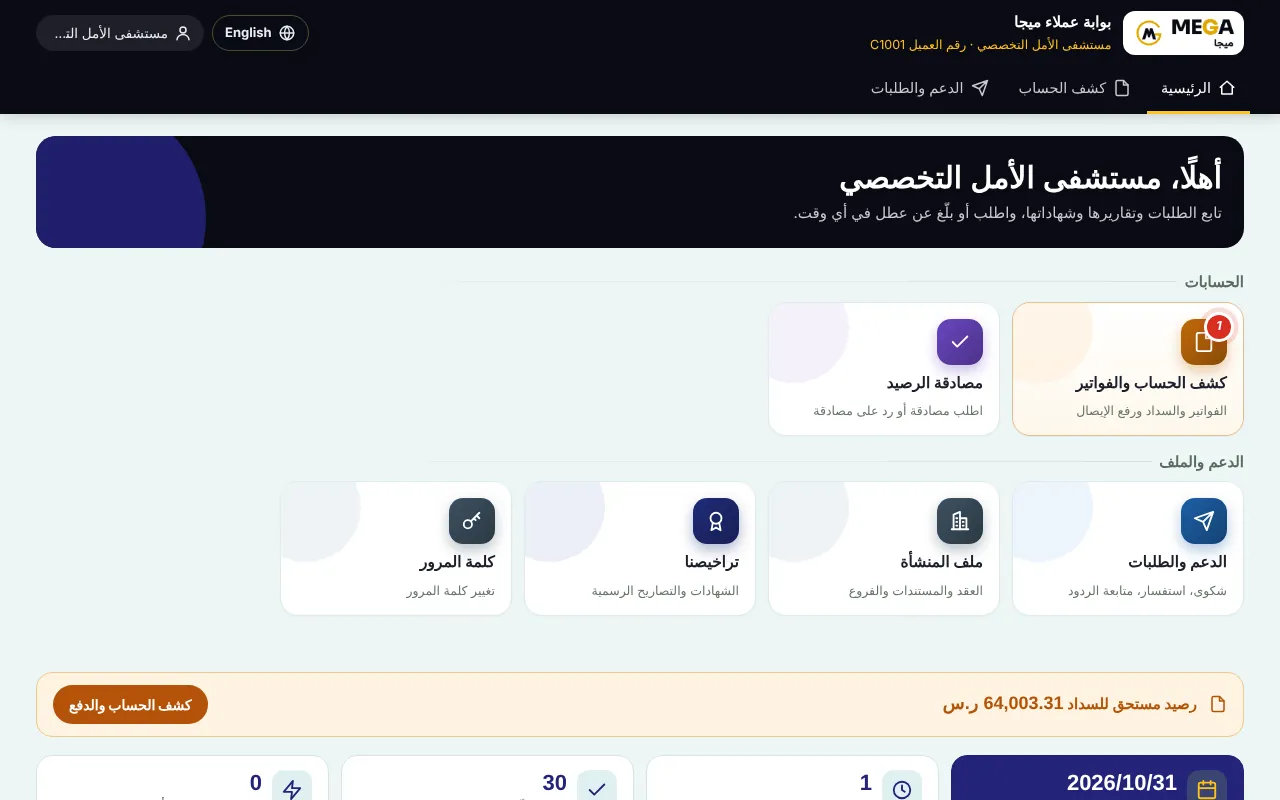
Home: the facility name and client number, alerts (balance due, confirmation request, new replies) and tiles: statement & invoices, balance confirmation, support & requests, facility file, licences and password.
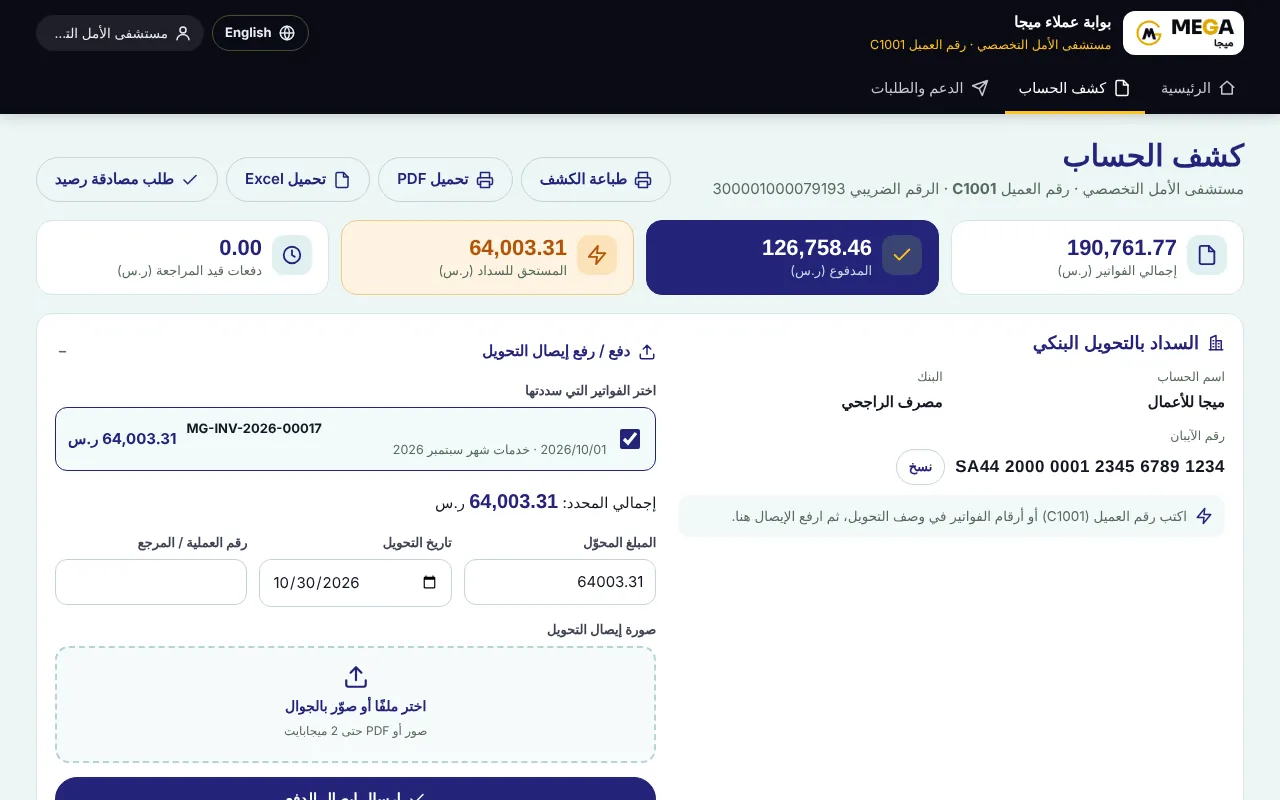
Statement: total invoiced, paid, amount due and payments under review, and the invoices table with each status (unpaid, partially paid, overdue, under review, paid).
Invoice: the client opens any invoice and prints it or saves it as PDF with the QR and verification code.
Paying by bank transfer: transfer to the company account (a “Copy” button copies the IBAN), then “Pay / upload transfer receipt”: tick the invoices, amount transferred, transfer date and reference, and the receipt image → “Send payment receipt”.
Follow the payment in the “Payments” table until the accountant confirms it; a notification arrives on confirmation or rejection with the reason.
Print the statement or “Request balance confirmation” from the same page.
Online payment (with MEGA Pay)
With the “MEGA Pay” add-on, a “Pay now” button appears next to every invoice with a balance, and the client pays by mada, Visa, Mastercard, Apple Pay or STC Pay — in full or partly, depending on your settings. Details in ميجا باي: استقبال الدفعات الإلكترونية.
Screenshots come from a demo copy with sample data.
Was this article helpful?
What could be better? (optional)
We only store vote counts — no personal data.