Signing in and two-step verification
One sign-in screen for every user, and each user only sees what belongs to their role.
Signing in
Open the portal link
/portal/from your company website or from the credentials message (English:/en/portal/).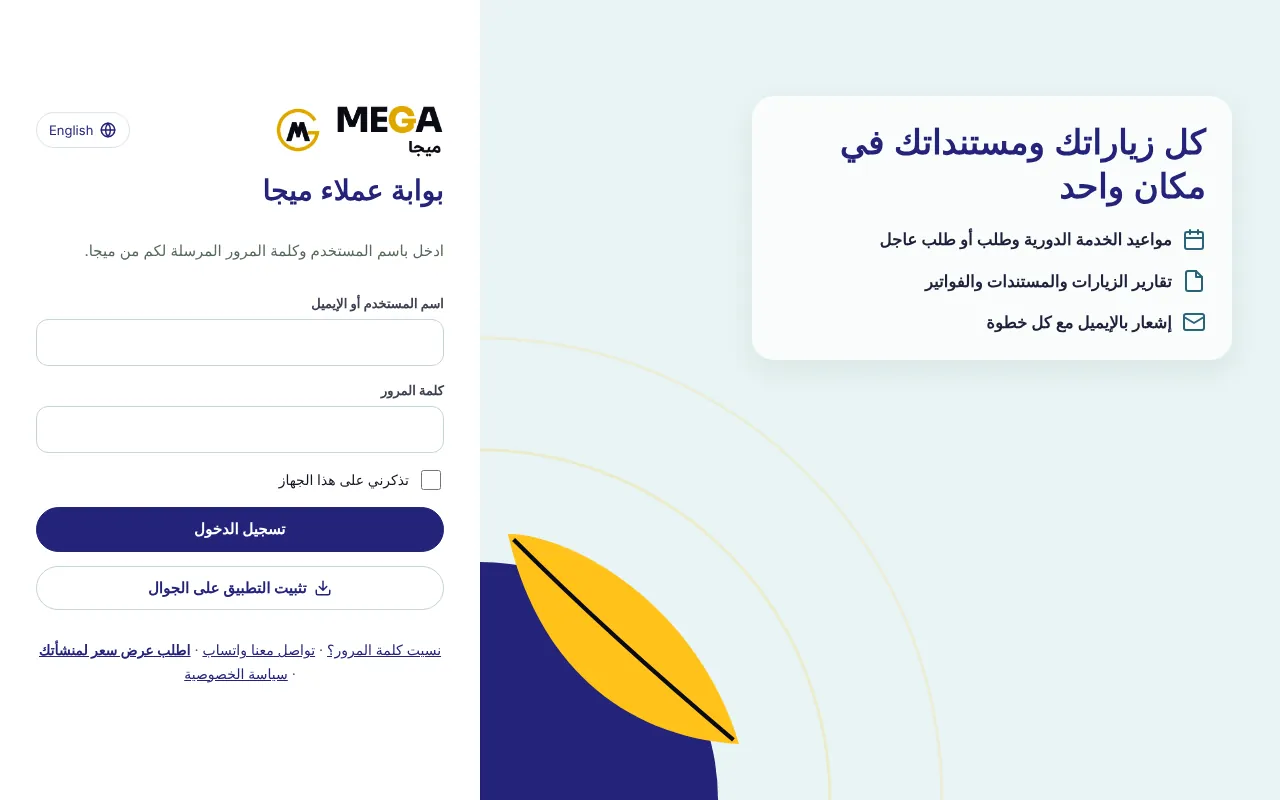
Choose the interface language with the “English / عربي” button above the sign-in box; it is saved to your account and used for notifications.
Type your “Username or email” and “Password” exactly as received (letters are case-sensitive).
Tick “Keep me signed in on this device” only on your personal device, then press “Sign in”.
If two-step sign-in is on: copy the 6-digit sign-in code from your email and press “Verify and sign in” before it expires (10 minutes by default).
After signing in, change the temporary password from your name menu at the top (at least 8 characters).
Two-step verification with an authenticator app (recommended for managers and accountants)
The code is generated on your phone every 30 seconds and cannot be intercepted the way an email can; it works in every portal with the same account.
From your name menu open “My account” and scroll to “Two-step verification (authenticator app)”.
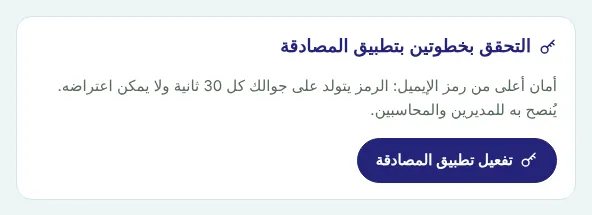
Install Google Authenticator or Microsoft Authenticator on your phone.
Press “Set up authenticator”; a QR code and a text key appear.
In the app: add account → scan the QR code (or type the key manually).
Enter the 6-digit code shown in the app and press “Confirm”.
From now on, after your password enter the current code from the app instead of waiting for an email.
Screenshots come from a demo copy with sample data.
Frequently asked questions
I forgot my password — what now?
Press “Forgot your password?” on the sign-in screen and a reset link is emailed to your registered address.
Why doesn’t the sign-in code arrive?
Make sure your account email is correct and active, and check the spam folder. If the email is wrong, ask management to fix it.
Was this article helpful?
What could be better? (optional)
We only store vote counts — no personal data.